

This tutorial was written for Issue 176 of Computer Arts magazine. You can see an image of the tutorial in print here.
When creating a new brand identity, it’s important to ensure your design is unique and one way to ensure this, is to either create your own font or modify an existing one. In this tutorial we will be creating a new brand identity for Computer Arts by modifying ‘Gotham’, an incredibly well-crafted typeface by H&FJ. If you don’t have the font already, you can find the ‘Gotham Light’ outlined version for download here. [H&FJ have requested for me to remove the file and I have done so, sorry for the inconvenience.]
A similar free font ‘Monseratt‘ can be found here.
It’s also important to note that in a real world situation, you should consider all your options before choosing to modify a typeface, based on thorough research & planning. The end result should be a brand identity that clearly and effectively conveys its intended message.
Time needed: 30mins
Software needed: Adobe Illustrator (or equivalent)
Skills you will learn:
- How to create a unique brand identity
- How to modify an existing typeface to create a unique logo
- How to use the pen tool when editing a typeface
Step One
1) If you have the Gotham ‘Light’ typeface, create a new document and type out the words ‘computer arts’ at 50pt and then right click and click ‘Create Outlines’. If you don’t have this font, download this file [H&FJ have requested for me to remove the file and I have done so, sorry for the inconvenience.]. You will also find the rest of the Gotham Light typeface if you wish to create a different logo after the tutorial. Take a moment to study the changes we are going to make, as circled in red.
Step Two

2) You will notice the text is now editable, this is because we have outlined the font. This allows us to edit the letterforms. Now that the text is outlined the first thing you will want to do is make a duplicate of the words. Hold down alt and drag a new copy out. After duplicating, right click on the text and click ‘Ungroup’. This allows us to edit each letterform individually rather than all at once.
Step Three
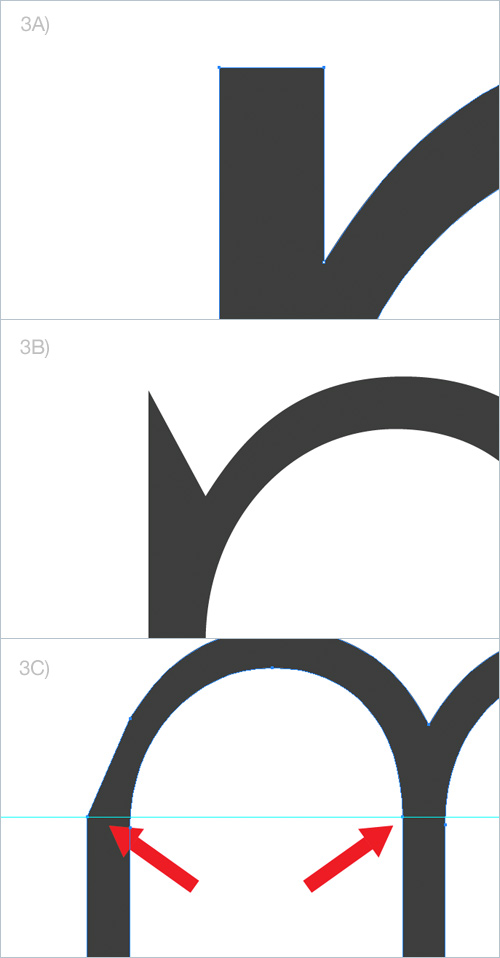
3A) Zoom into the top of the ascender of the letter M at 6400%.
3B) Select the letter M and then select the delete anchor point tool by clicking the minus button (-) on your keyboard. Delete the top right anchor point of the M’s ascender. This will leave a sharp point.
3C) Zoom out, turn on smart guides (Cmd+U) and then put a ruler in line as shown. Take note that the ruler is directly inline with the anchor point on the middle of the M. Use the direct selection tool (from now on called DST) and pull down the left side of the M to in line where you made the rule. Hold down shift to ensure it is locked to a straight line.
Step Four
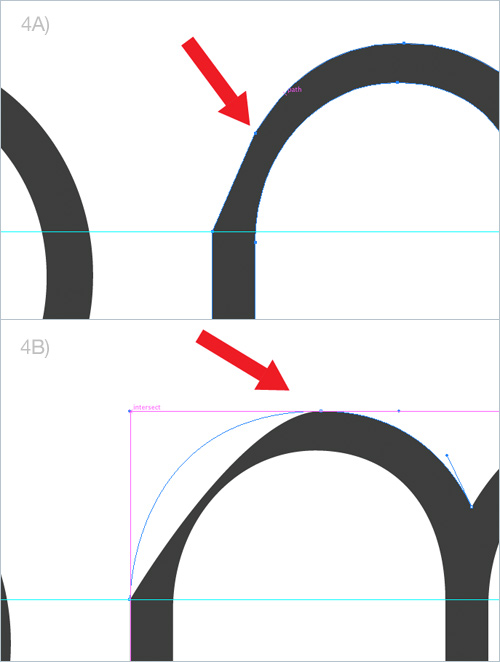
4A) Select the delete anchor point tool again and delete the anchor point on top of the M as shown by the arrow.
4B) Now grab the DST again, click once on the very top anchor point of the M. This will show two blue nodes. Grab the left one and pull it out to the left so it is inline with the vertical edge of the M, remembering to hold down shift while doing so. A pink smart guide should show you where to lock it into place. Let go and now the letter m is complete.
Step Five
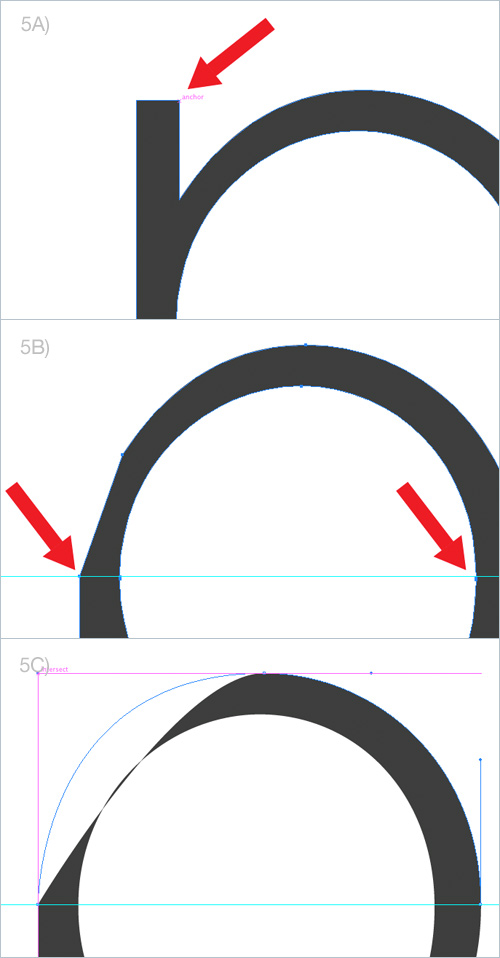
5A) Now zoom into the letter P. This is going to be similar process… delete the top right corner of the p’s ascender.
5B) Create a new ruler and put it in line with the middle of the P as shown, taking note that this is a different spot to the first rule. (You may want to delete the other guide so you do not confuse yourself). Now get the DST and drag the left side of the P down to inline with the rule you just created.
5C) Now delete the middle anchor point of the P. With the DST select the top anchor point and pull out the left blue node to the side of the P, just like we did for the M.
Step Six
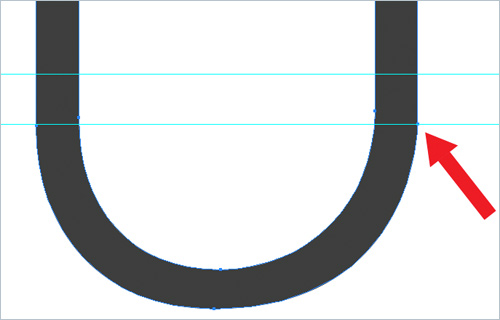
6) The letter U will be using the same technique, just in reverse. Delete the left anchor point of the descender. Create a rule in line with the bottom anchor point found on the other side of the U. Get the DST and move the point up to where you created the line. Delete the middle anchor point like you have done for the M and P. Get the DST and click the bottom middle anchor point, drag out the right node to in line with the right side of the U. The U is now complete. Use this same technique for the letter A.
Step Seven
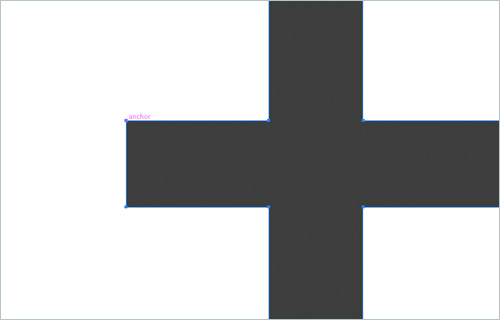
7) Now zoom into the letter T. Use the delete anchor point tool (-) and delete the two anchor points found on the left side of the T. You will notice that it leaves two other unneeded anchor points on the middle stem of the letter T. It’s good practice to optimise your files, both for file size and faster printing, so delete these too. Do this all again for the second letter T. Don’t worry about kerning just yet.
Step Eight
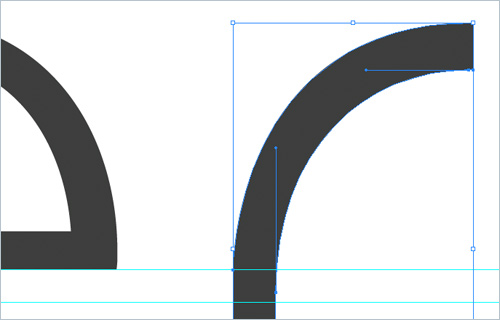
8. Zoom into the letter R. The letter R is going to be using the same technique as the M and P however take note of where the ruler is located this time, this time it is in line with the bottom of the E. After you have done the letter R, duplicate it and drag it over to the other R and place it directly on top of the other R. Delete the R with the ascender. All of the letters have now been modified. From here you can kern as much as you desire.
Step Nine

9) Now that you have the customised type, you can experiment further by adding new elements such as the ‘CA’ provided, tweaking nodes, changing the layout, sizing, colour, etc. to create a unique brand identity. Shown in the image above are just some of many possible variations.
Other magazine appearances:
Below are a few other other magazines that I have written for / been featured in. If interested, you can find the full list on my about page.
- Ask The Experts: Logo Design Q&A in Computer Arts Magazine
- Designing with Negative Space in Layers Magazine
- Logo Design Tutorial: How To Create An Iconic Logo Design in Computer Arts Magazine
- Vero Logo Design Process from Start To Finish in Layers Magazine
- How to create a vector font monster using the glyph panel in Layers Magazine
- Illustrator & Type Tips Worth Knowing in Computer Arts Magazine
- “Instant Inspiration” Designer Spotlight & Interview – Layers Magazine
Be sure to share your creations if you do the tutorial!



That’s a great tutorial Jacob. Out of curiosity, how do you land a gig like this? Writing for the magazine I mean?
Hi Preston,
Glad you liked it. As for landing writing gigs for magazines its about building a relationship with the editors at the magazine. I originally started writing for Layers Magazine and then from here I contacted Computer Arts to see if they were interested in any articles. They were and since then have written / been featured in them since.
If you are interested in writing for magazines, simply contact the editor or deputy editor of whatever magazine you choose, show them your credentials, offer them ideas for articles / tutorials and see what they say. Good luck!
Awesome! Really nice tips and tricks. Really glad for sharing this. This will help lots of designers including me 😉
Cheers!
Very informative post, read this article in Comp Arts before I saw this one actually. Very handy for designers such as myself that are starting out to learn these quick tricks 🙂
what a crazy and simple way of using existing typefaces.thanx jacob will try it on another typeface font..cheers!~
Thanks for the amazing tutorial Jacob 🙂
That is a crafty way to make any typeface unique to your style! I learned a few things here that could help me out in the future. First off, it’s always neat to learn a new way to achieve a good look with full control over the editable text. The second one was from reading your response to Preston D Lee’s comment. What you’re recommending about contacting the editors just because shows that you got some ambition and you’re not afraid to show it. That’s genius Jacob!
Nice work Jacob, read the article the other day in the print mag and enjoyed it.
Simple and yet unique at the same time. Thanks for sharing this. Makes you wonder how many people actually do this as well.
I like it. Simple but very creative. Thanks Jacob
like the tutorial,, very creative and informative..
Mohsinfancy
freelance Graphic designer
I’m looking for a logo designer and I’m open to quotes.
I could be research @ sunny(dot)toom (at) googlemail(dot)com
Cheers!
Gene
Hi, I would appreciate if you could delete the comment above which shared my email address. If a verification is required, write back to the same email address.
Thanks in anticipation.
Sunny
Nice Tutorial, the finished typeface looks awesome!
Thanks for sharing!!
Fantastic tutorial, Jacob! Thanks for sharing!
Simple and nice.Helpful tutorial.Thank you.
The final font looks just great, but sometimes you don’t have enough time for such things and you just find a good font somewhere on the web. sad, but true (
This is awesome.
Thanks for sharing! 🙂
Nice post, will give this a try thanks!
Nice one, and its so simple to do too! I shall try this out soon. Thanks a lot 🙂
So simple and so great 🙂 Thanks
80+ Fresh Logo designs – get Inspired! – http://www.cruzine.com/2010/06/16/fresh-logo-designs-inspiration/
Great Idea… I’m a little bit lasy doing logos, even if i new it, was great to remember!!!
great tutorial and real easy to follow. gonna bookmark your blog.
Thx! This tutorial i will use for my next site logo.
It’s nice but it’s kinda too much work for a not very noticeable result.
Good tutorial, we pretty much always use custom typography in our logo’s. It always helps to give the instant unique feel.
This is an excellent and very informative article. Nevertheless I am a little bit disappointed about the fact that there is absolutely no information about reasonable prices. Of course I understand that there is a huge variety in quality from the designer and needs from the buyer. But Jacob said it himself: “How much does a logo cost” is the most frequently asked question. There should be at least a wide spectrum of average prices for logos.
I think the reason there is no “price list” is because of the wide spectrum of quality & needs out there. The best way to price yourself would be to read this article on “how to much to charge for design work“.
Greetings. A great tutorial, I learned much and easily with it. Thanks for share.
I like the execution
Nice work
You forgot to do the a from “arts” but other than that great tutorial. Thank you for sharing!
Very Important tutorial. I am also a graphic designer. this tutorial help me to improve my design Technic.Thanks Jacob.
Just read this font article, thanks for sharing and showing the process. I have often spent time trying to get a text logo to work during brainstorming and sketch stages, but always end up throwing them out. This is inspirational to see it actually come together through your step by step process!
Its pretty cool for a logo designer to put up a tutorial where he shows how he goes about treating the design in the software. That’s pretty rare. Good stuff.
I like this modification which you taught here step by step! .. It is very nice and easily can do anyone..Thanks
I wanted a font logo and I tried to myself to give the great look but could not do myself. I shared here step by step logo modification. then i can do it…
Good tutorial, this is just what I was looking for. I’m new to logo design so this is very helpful. Thanks for sharing
Helpful tutorial for beginners and who wants to improve their web designing skills. Currently I am working on logo design for my friend’s website and your tutorial helps me a lot in improving my designing skills.